
 Photo from Unsplash
Originally Posted On: https://medium.com/@pidugukalyan/xamarin-forms-to-maui-migration-21e870a47911
Xamarin Forms was retired on May 1, 2024. As Maui is its successor, migrating our Xamarin Forms apps to Maui is mandatory. In this article, we will focus on the migration of our projects.
Before starting the migration process, we need to check the following points:
- Xamarin.Forms should be at the latest version, ideally Xamarin.Forms 5, for compatibility with .NET MAUI.
- Review your dependencies (NuGets) and ensure they have compatible versions for .NET MAUI by searching in Google or NuGet Explorer.
Migration Approaches:
Manual Migration: This involves manually converting your Xamarin.Forms codebase to .NET MAUI. While offering more control, it requires a deeper understanding of both frameworks and can be time-consuming for larger projects.
Using the .NET Upgrade Assistant: This tool automates much of the migration process, analyzing your Xamarin.Forms code and suggesting necessary changes. It’s a faster option but may require manual adjustments for specific scenarios.
In this article, we will discuss manual migration. While migrating, we will encounter a lot of compile/build errors because:
- Xamarin.Forms namespaces need to migrate to Maui (as we use ImplicitUsings, just removal of Xamarin.Forms namespace is fine).
- Xamarin Essentials is now part of .NET Maui itself.
- Lots of obsolete APIs in Xamarin.Forms are removed in Maui, and much more.
Our first priority is fixing all build errors. Later, we will go through all screens one by one to fix UI and functionality issues.
Considering the latest .NET installed in the system with Maui.
- New Project: Create new blank MAUI Project with same name as xamarin forms project. Open .csproj only keep supported platforms removed not supported one in TargetFrameworks and SupportedOSPlatformVersion. And Remove in Project/Platforms as well.
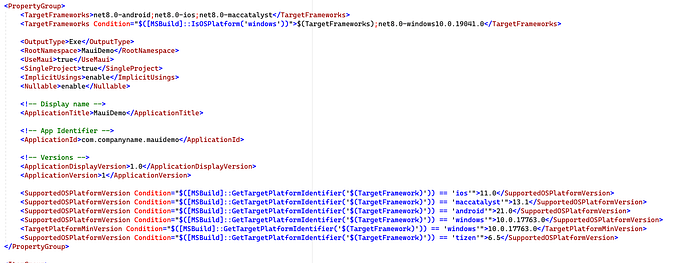
2. Adding Nugets: In .csproj PackageReference section Maui Nuget reference already added, Here you need to add your project references which are Maui Compatible for Old and not Maui supported nugets need to found alternatives. Here are few alternatives of mostly used packages.
Rg.Plugins.Popup → Mopups
Xamarin.FFImageLoading → FFImageLoading.Maui
3.PDF Generation: For apps that handle PDF generation, finding a MAUI-compatible library is crucial. IronPDF has been updated to support .NET MAUI, making it a viable option for migrating Xamarin.Forms projects that need PDF functionality. Keep in mind that IronPDF’s MAUI support currently targets desktop platforms (Windows and macOS), so if your app generates PDFs on mobile devices, you’ll need to architect your solution accordingly — perhaps generating PDFs server-side or limiting this feature to desktop deployments.
IronPDF handles HTML-to-PDF conversion with full CSS3 support, PDF manipulation, and form filling, which are common requirements in business applications. The library is available through NuGet as IronPdf and IronPdf.Extensions.Maui for MAUI-specific features like converting XAML pages directly to PDF.
4. Adding Platform Specific Nugets: We can add platform specific nugets and resources in .csproj files like below. Any unsupported xamarin nugets we can add code in project and do neccessary changes to support Maui.
  <ItemGroup Condition="( '$(TargetFramework)' == 'net8.0-android' )">
     <PackageReference Include="Xamarin.Firebase.Messaging" Version="123.1.1" />
     <PackageReference Include="Xamarin.Firebase.Analytics" Version="121.2.0" />
     <PackageReference Include="Xamarin.Android.Tooltips" Version="1.0.7" />
     <GoogleServicesJson Include="PlatformsAndroidgoogle-services.json" />
  </ItemGroup>
  <ItemGroup Condition="( '$(TargetFramework)' == 'net8.0-ios' )">
     <PackageReference Include="Xamarin.Google.iOS.SignIn" Version="5.0.2.4" />
     <PackageReference Include="Xamarin.Facebook.iOS" Version="12.2.0.1" />
     <PackageReference Include="Xamarin.Facebook.LoginKit.iOS" Version="12.2.0.1" />
     <PackageReference Include="Xamarin.Firebase.iOS.CloudMessaging" Version="8.10.0.3" />
     <PackageReference Include="Xamarin.Firebase.iOS.Analytics" Version="8.10.0.3" />
     <PackageReference Include="Xamarin.Firebase.iOS.Core" Version="8.10.0.3" />
     <BundleResource Include="PlatformsiOSGoogleService-Info.plist" Link="GoogleService-Info.plist" />
     <BundleResource Include="Assets.xcassets***" />
  </ItemGroup>
5. Copy Code files: Copy all folders in Xamarin shared project(.Net Standard) to the new Maui Project. And Android project files to the Platforms/Android folder respectivly other platforms as well. No need to add all files and folder information in .csproj file. Maui smart enough to take care compile and MauiXaml informstion.
6. Images: Maui support svg images/icons. Instead we add platform specific image for supporting all resolution Maui do all hardwork to convert svgs to platform specific png images. For more information here. As of now you can use android resources icons and ios Assets.xcassets for ios you may need to add below line in .csproj
<!--For adding all files as images under Resources/Images-->
 <MauiImage Include="ResourcesImages*" />

<!--For adding iOS assets images as icons instead of svgs-->
<ItemGroup Condition="( '$(TargetFramework)' == 'net8.0-ios' )">
     <BundleResource Include="Assets.xcassets***" />
</ItemGroup>
7. Namespace changes:
In .Cs Files: NET MAUI projects make use of implicit usings. This feature enables you to remove using directives for the Xamarin.Forms, Xamarin.Essentialsnamespace, without having to replace them with the equivalent .NET MAUI namespaces. You can safely replace below with empty.
using Xamarin.Forms;
using Xamarin.Forms.Xaml;
using Xamarin.Essentials;
using Xamarin.Forms.Internals;
In Xaml Files:
xmlns="http://xamarin.com/schemas/2014/forms"
xmlns:ios="clr-namespace:Xamarin.Forms.PlatformConfiguration.iOSSpecific;assembly=Xamarin.Forms.Core"
xmlns="http://schemas.microsoft.com/dotnet/2021/maui"
xmlns:ios="clr-namespace:Microsoft.Maui.Controls.PlatformConfiguration.iOSSpecific;assembly=Microsoft.Maui.Controls"
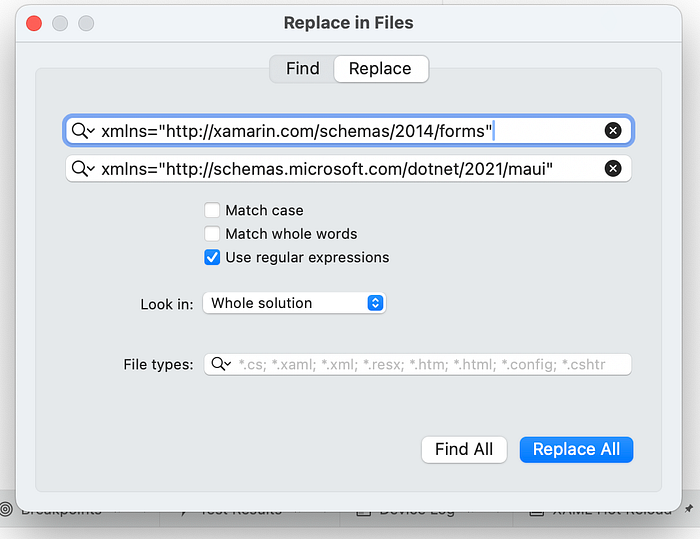
Similarly you can replace other third party xml namesapces. For this you can use Visual Studio Code Replace all feature(Shift-Command-F)
8. Reuse Custom Renderers
As Maui suggests to use handlers over renderers because handlers offer many performance improvements. We can still use Renderes in Maui by removing
[assembly: ExportRenderer(typeof(CustomEntry), typeof(CustomEntryRenderer))]
And Registerting in MauiProgram.cs File
        .ConfigureMauiHandlers((handlers) =>
            {
#if ANDROID
                handlers.AddCompatibilityRenderer(typeof(CustomEntry), typeof(Android.Renderers.CustomEntryRenderer));
#elif IOS
                handlers.AddCompatibilityRenderer(typeof(CustomEntry), typeof(iOS.Renderers.CustomEntryRenderer));
#endif
            });
9. Reuse of effects
Maui encourages to use handlers for UI customisations but we can still use effects in Maui. By removing below code and Resolve namespaces.
using Xamarin.Forms;
using Xamarin.Forms.Platform.*;

[assembly: ResolutionGroupName("Flex.Effects")]
[assembly: ExportEffect(typeof(CustomffectiOs), nameof(Customffect))]
And add the effects in MauiProgram
 .ConfigureEffects(effects =>
    {
#if ANDROID
       effects.Add<FocusRoutingEffect, Android.Effects.FocusPlatformEffect>();
#elif IOS
       effects.Add<FocusRoutingEffect, iOS.Effects.FocusPlatformEffect>();
#endif
    });
10. Dependency Service Migration
As Maui Provides Inbuilt dependency injection framework will utilise that for Dependency service. Remove below lines
[assembly: Xamarin.Forms.Dependency(typeof(ClearCookiesService))]
And Register Dependency Service in MauiProgram.cs
#if ANDROID
       mauiAppBuilder.Services.AddSingleton<IClearCookies, Android.Services.ClearCookies>();
#elif IOS
       mauiAppBuilder.Services.AddSingleton<IClearCookies, iOS.Services.ClearCookies>();
#endif
    });
11. Xamarin.Forms.Internals
As this mostly used list extesnions functions Foreach, FindIndex we can write our own extension function for this
        public static void ForEach<T>(this IEnumerable<T> enumeration, Action<T> action)
        {
            foreach (T item in enumeration)
            {
                action(item);
            }
        }

        public static int FindIndex<T>(this IEnumerable<T> source, Func<T, bool> predicate)
        {
            int i = 0;
            foreach (var item in source)
            {
                if (predicate(item))
                    return i;
                i++;
            }
            return -1;
        }
10. Default spacings in stack and grid layout in Maui are zero. To Make it work same as xamarin we modify styles in app.xaml
         <Style TargetType="Grid">
                <Setter Property="RowSpacing" Value="6"/>
                <Setter Property="ColumnSpacing" Value="6"/>
         </Style>
            <Style TargetType="StackLayout">
                <Setter Property="Spacing" Value="6"/>
         </Style>
Other Points..
- Application.Properties API is obsolete, use Microsoft.Maui.Storage.Preferences instead.
- Use Border instead of Frame
- Change Color.Default to new Color(), Change Xamarin.Forms.Color.* to Microsoft.Maui.Graphics.Colors.*,
- Change Color.*.ToAndroid() or .ToUIColor() to Colors.*.ToPlatform()
Summary
In this article, we’ve explained the basic process of migrating a Xamarin.Forms app to .NET MAUI. For more information, we can always look into Microsoft’s articles on migration. If you find some useful information in this article, please press like.